Welcome to the VendoPulse User Manual
A simple learning path for new users, daily operators, and basic troubleshooting.
Getting Started
Installation, preparation, and first test.
POS & Sales
Complete transaction workflow.
Products & Inventory
Catalog and stock guidance.
Reports
History, totals, and review.
Security & Backup
Protect access and local records.
Troubleshooting & FAQ
Common problems and answers.
1. Getting Started
Installation, workstation preparation, and safe first use.
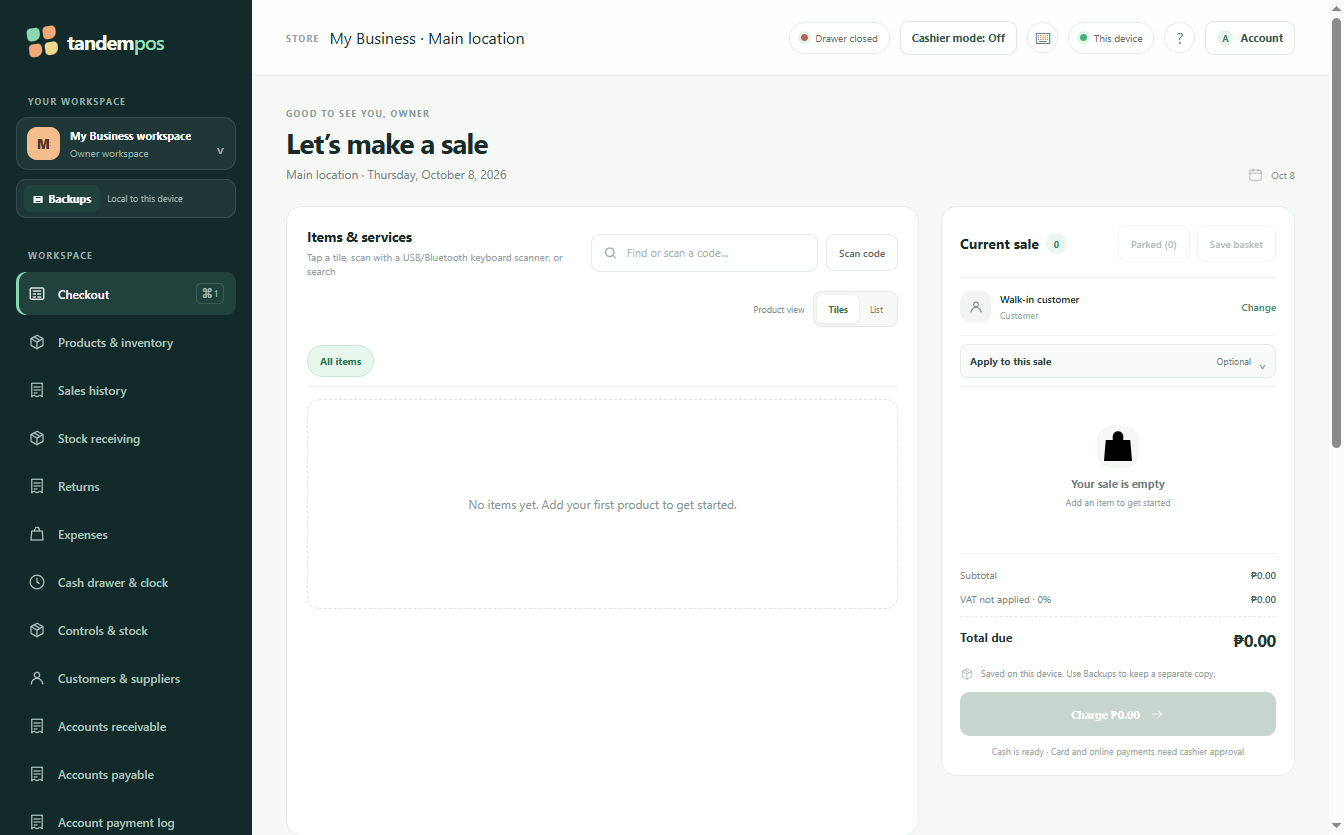
Prepare Windows
Use the computer intended for POS operations. Close unnecessary programs and make sure there is enough storage.
Run the installer
Open VendoPulse.exe and follow the setup wizard.
Launch VendoPulse
Open the application from the Windows Start menu or shortcut.
Perform a test
Create a sample product and test a sample transaction before using real business records.
2. POS & Sales Guide
The standard reference for processing a customer transaction.
Start a transaction
Open the POS/sales area and begin a new sale.
Select products
Choose items using the available catalog, search, category, or barcode workflow.
Verify quantity
Check every quantity before moving to payment.
Review the total
Confirm products, prices, discounts or adjustments, and final amount.
Process payment
Select the available payment method and enter or confirm the amount received.
Complete the sale
Finish the transaction only after the final amount is correct.
3. Product Management Guide
Keep product information accurate and easy to find.
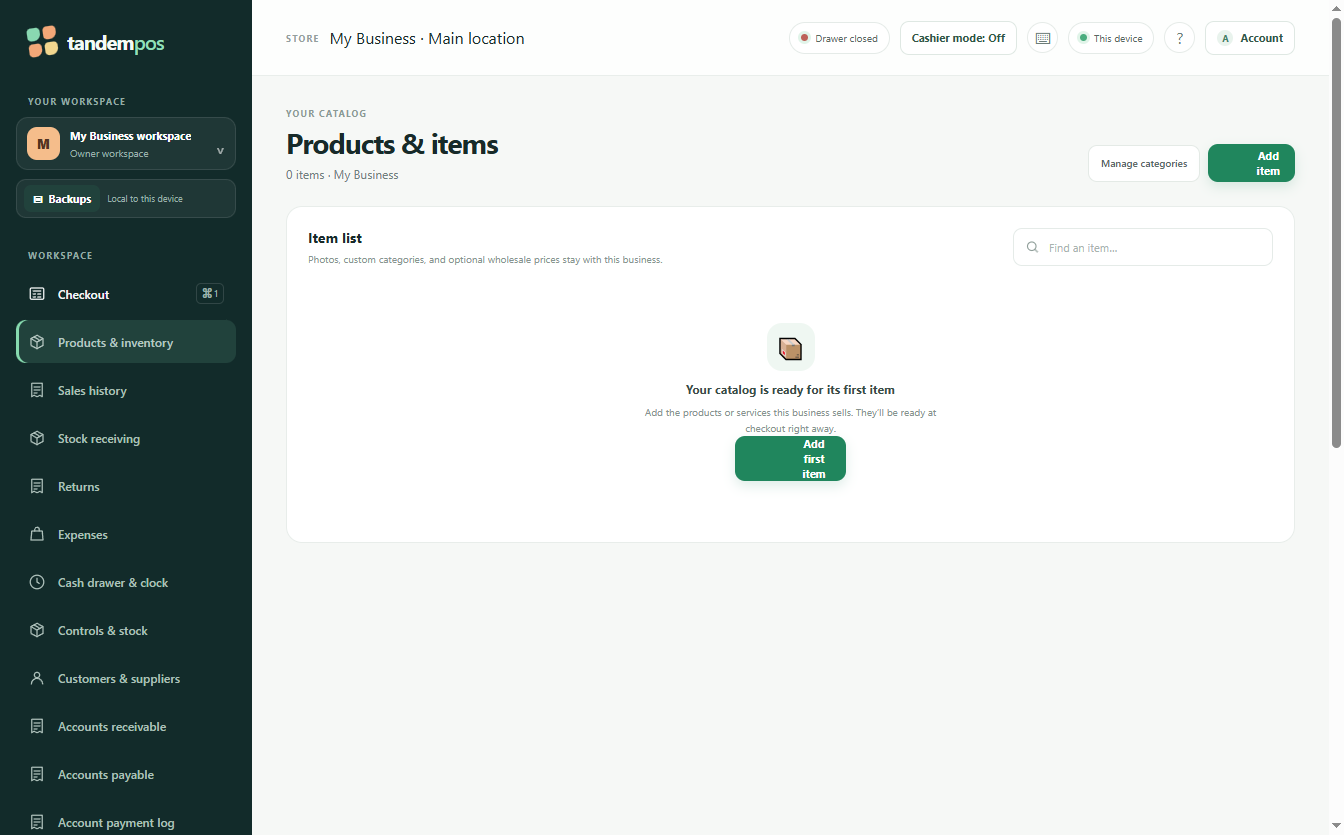
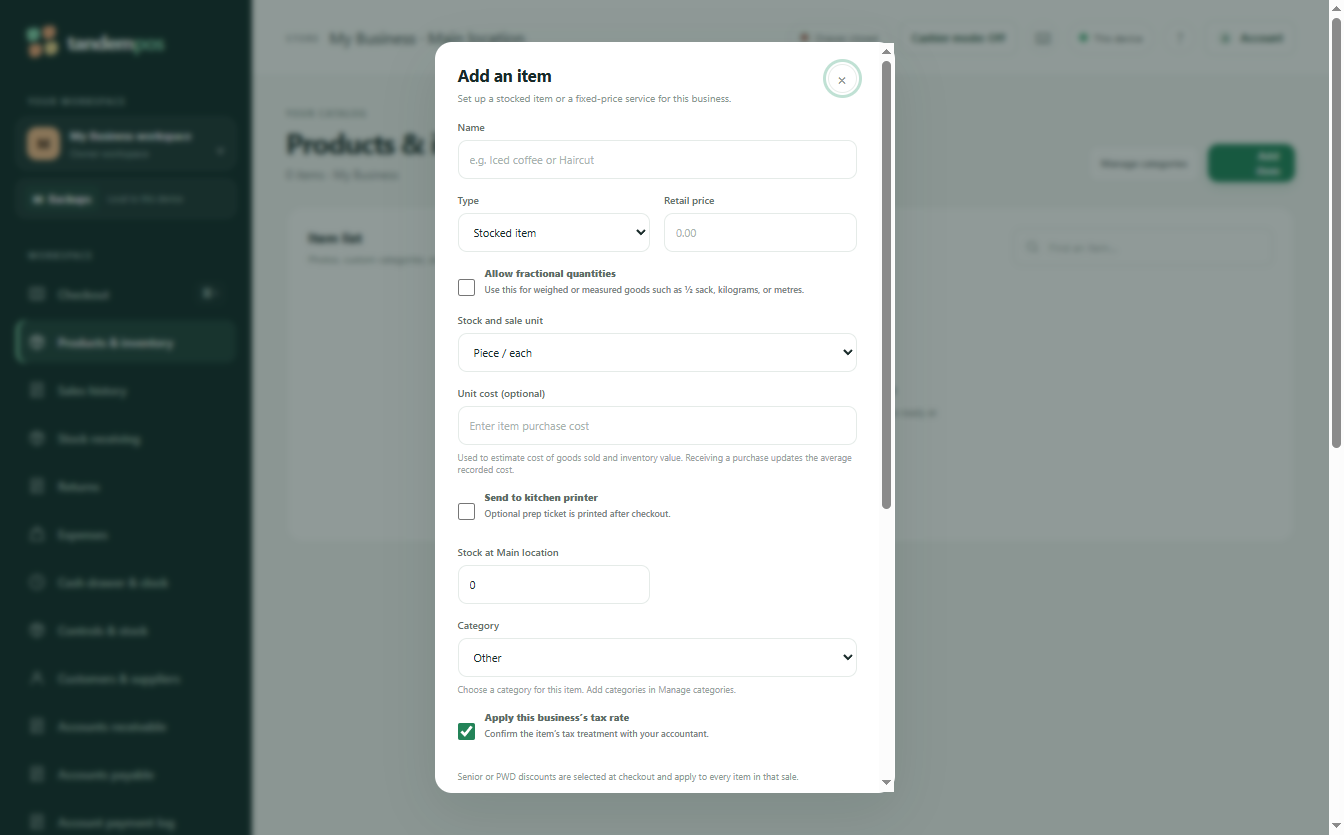
Open product management
Go to the product/catalog section available in the installed build.
Add a product
Enter a clear name, price, category, and any other available fields.
Edit information
Update outdated information only when authorized.
Verify in POS
Save the product and confirm that it appears correctly during a sale.
4. Inventory & Stock Guide
Maintain reliable stock information and investigate differences.
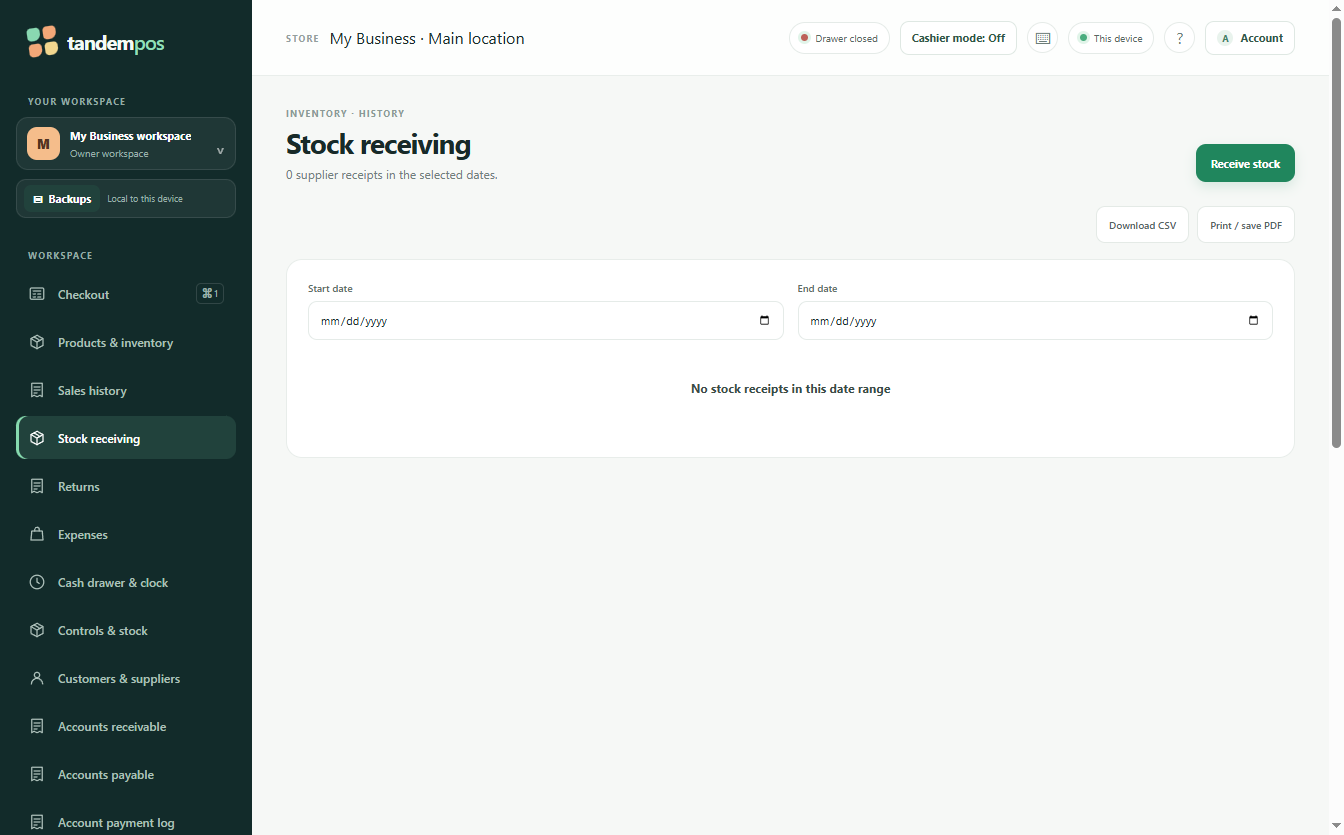
Opening Stock
With syncing OFF, record local opening quantities accurately. With syncing ON, receive new stock through the website and keep opening balances separate from In.
Stock Changes
Record legitimate receiving, sales, returns, and adjustments.
Reconciliation
Compare system quantities with physical stock.
Check current quantity
Review stock before changing it.
Record authorized changes
Only update stock for legitimate movements or corrections.
Investigate differences
Check recent transactions and adjustments when physical stock does not match.
5. Sales History & Reports Guide
Review transactions, totals, and available business reports.
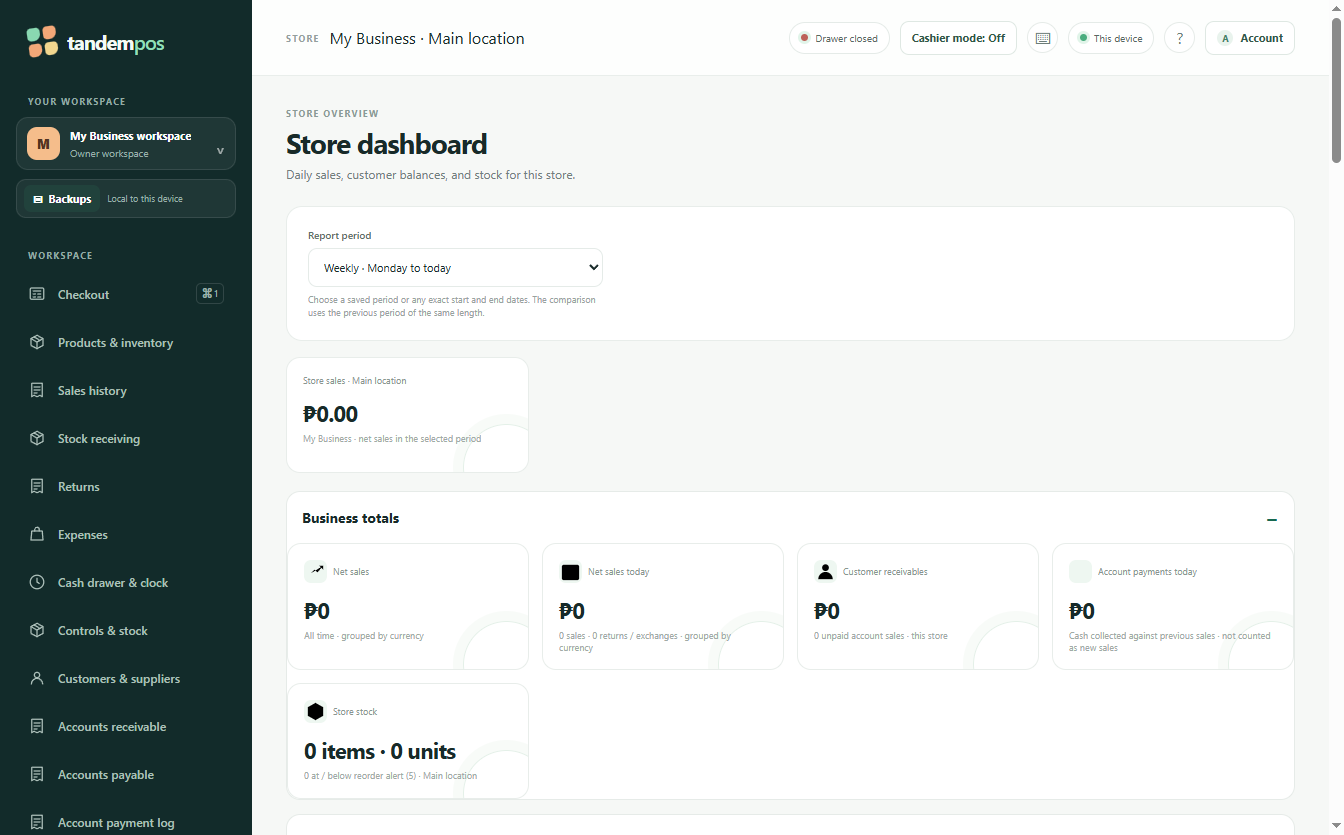
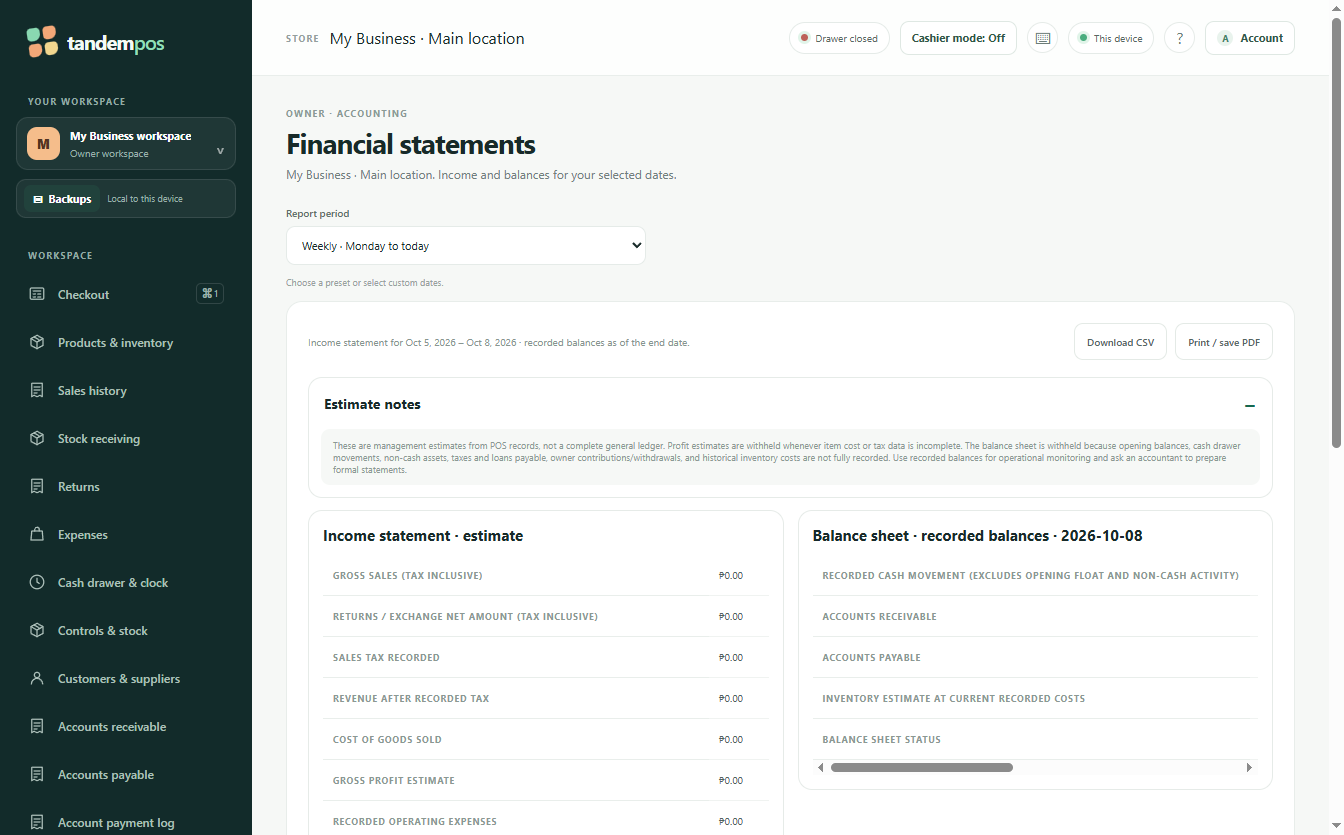
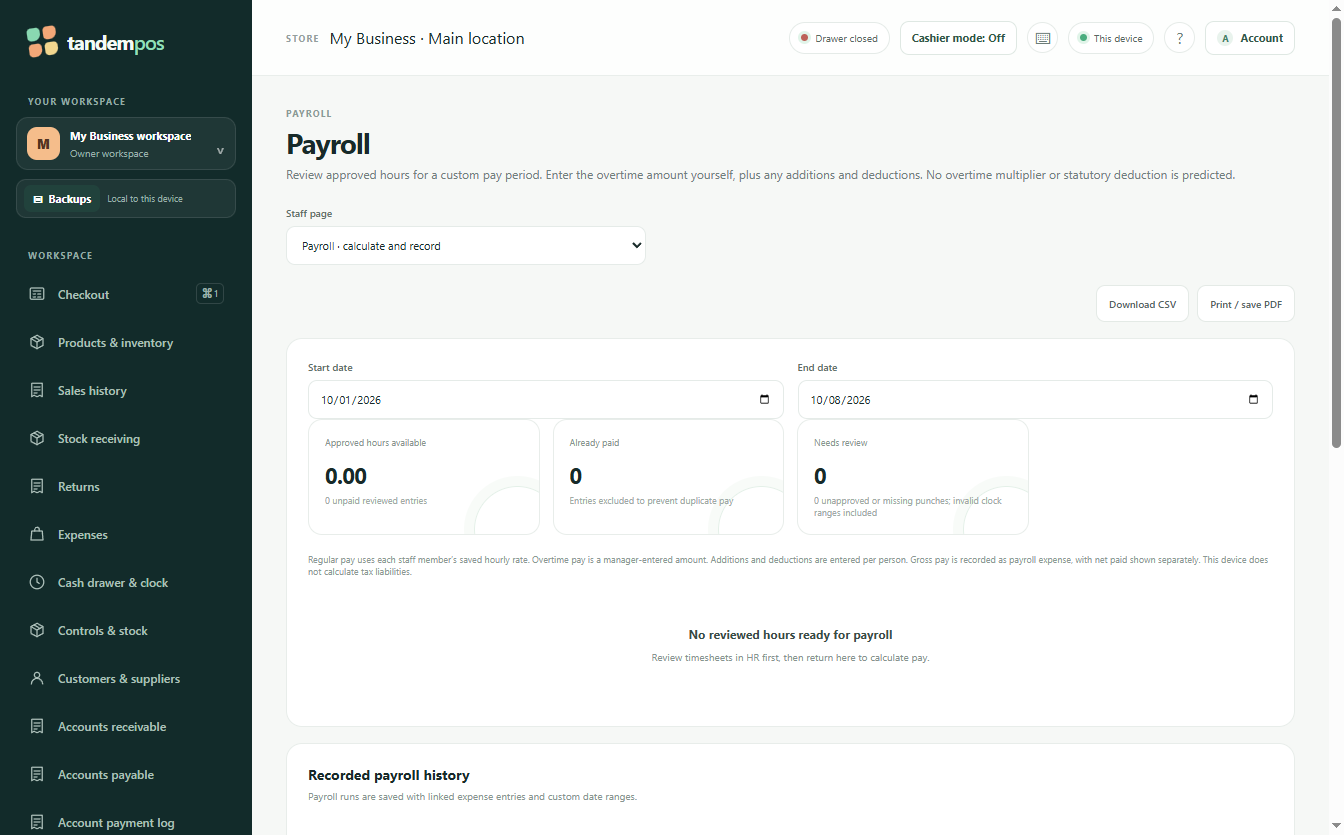
Open history/reports
Use the available sales history or reporting section.
Select a period
Use date filters when available.
Review transactions
Inspect individual sales when checking discrepancies.
Review totals
Compare reported totals with expected payment records.
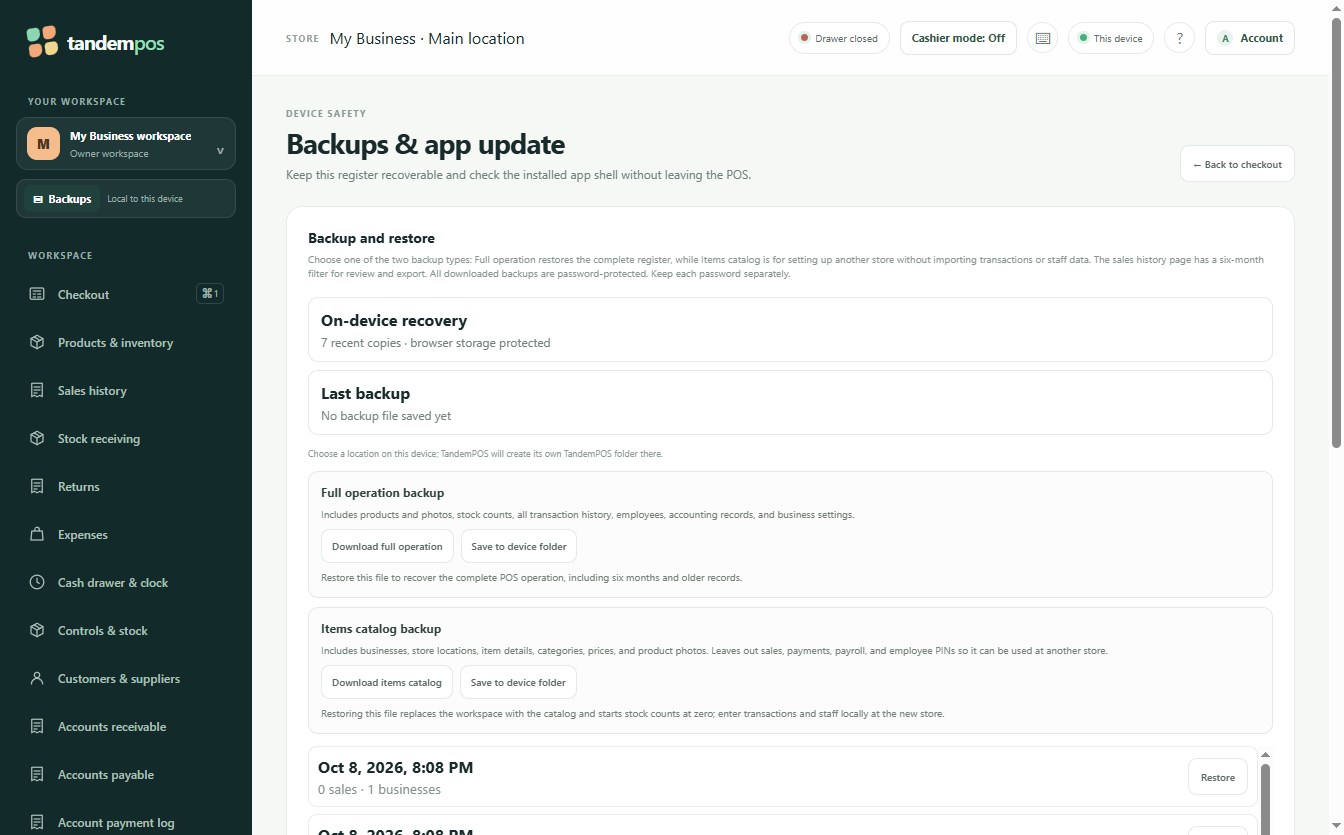
6. Security & Data Backup Guide
Protect accounts, the workstation, and local business records.
Passwords
Use strong credentials where accounts are provided and avoid unnecessary sharing.
User Access
Give users only the access required for their work.
Backup
Back up important local records regularly and test recovery when possible.
7. End-of-Day Guide
A simple closing checklist for normal daily operation.
Confirm transactions
Make sure sales are complete and there are no unintended open transactions.
Reconcile payments
Compare POS totals with actual cash and other payment records according to policy.
Review stock
Investigate unusual inventory differences.
Back up data
Complete the required backup procedure before closing the workstation.
8. Troubleshooting Guide
Practical first-response steps for common issues.
| Problem | First action | Next check |
|---|---|---|
| App will not open | Restart the application. | Restart Windows and verify installation. |
| Product missing | Search the catalog. | Confirm it was saved and available for sale. |
| Wrong quantity | Correct it before payment. | Review the transaction entry. |
| Wrong total | Check products, quantities, prices, and adjustments. | Do not complete payment until verified. |
| Printer/peripheral issue | Check power and connections. | Check Windows device status and retry. |
| Records missing | Check date/filter/history. | Verify local data and backup before making changes. |
9. Frequently Asked Questions
Quick answers for common new-user questions.
A Windows point-of-sale application. The supplied installer identifies it as a local-first POS app.
Yes. Use sample products and a test transaction first.
Correct the transaction before payment whenever possible. After completion, follow the authorized correction or return procedure.
It makes checkout faster and reports easier to understand.
Follow your organization's backup policy and choose a frequency that limits unacceptable data loss.
Yes. Labels and available controls can vary by build. Follow the interface shown by the installed version.
10. Best Practices
Simple habits that reduce errors and protect records.
Before selling
Keep products and prices updated.
During selling
Verify product, quantity, price, and total.
After selling
Keep records and receipts accurate.
Inventory
Investigate unexplained stock differences.
Security
Protect access and credentials.
Continuity
Maintain backups and recovery procedures.
11. One-Page Quick Reference
Fast workflows for common tasks.
🛒 Make a Sale
New Sale → Product → Quantity → Total → Payment → Complete
📦 Manage a Product
Local mode: Products → Add/Edit → Save → Verify. Online mode: website catalogue → review/import → sync compatible POS.
🌙 End the Day
Review → Reconcile → Stock Check → Backup → Close
12. Documentation Notes
This manual was prepared from the supplied VendoPulse local build installer. It remains a reference for local register tasks. Current downloads and new integration controls have separate release availability; check the published platform versions.