1. About VendoPulse
VendoPulse local build is identified by the installer as a local-first point-of-sale (POS) app, the current local build. The current Windows and Android downloads are listed on the website. This guide is designed for first-time users who need a clear reference for preparing the application, learning the POS workflow, handling product information, and maintaining day-to-day records.
Local-first
The installer identifies VendoPulse as a local-first POS application, emphasizing operation on the Windows computer rather than requiring every action to depend on a browser service.
Point of Sale
The app is intended for sales and checkout workflows where products are selected, quantities are handled, totals are reviewed, and a transaction is completed.
Windows App
The VendoPulse local build is a Windows installer. Install it on the computer that will be used as the POS workstation.
2. Installation and First Launch
Use the supplied VendoPulse.exe on a Windows computer.
Run the installer
Locate the installer file and double-click it. If Windows displays a security prompt, verify that you intentionally downloaded or received the installer before continuing.
Follow the setup wizard
Read each setup page, keep the recommended installation location unless your organization has a different standard, and allow the installer to finish copying the application.
Start VendoPulse
Open the application from the Windows Start menu or the shortcut created by the installer.
Prepare a test session
Before using the system for real sales, create or verify a small set of test products and perform a test transaction. Confirm that the workflow behaves as expected on your particular build.
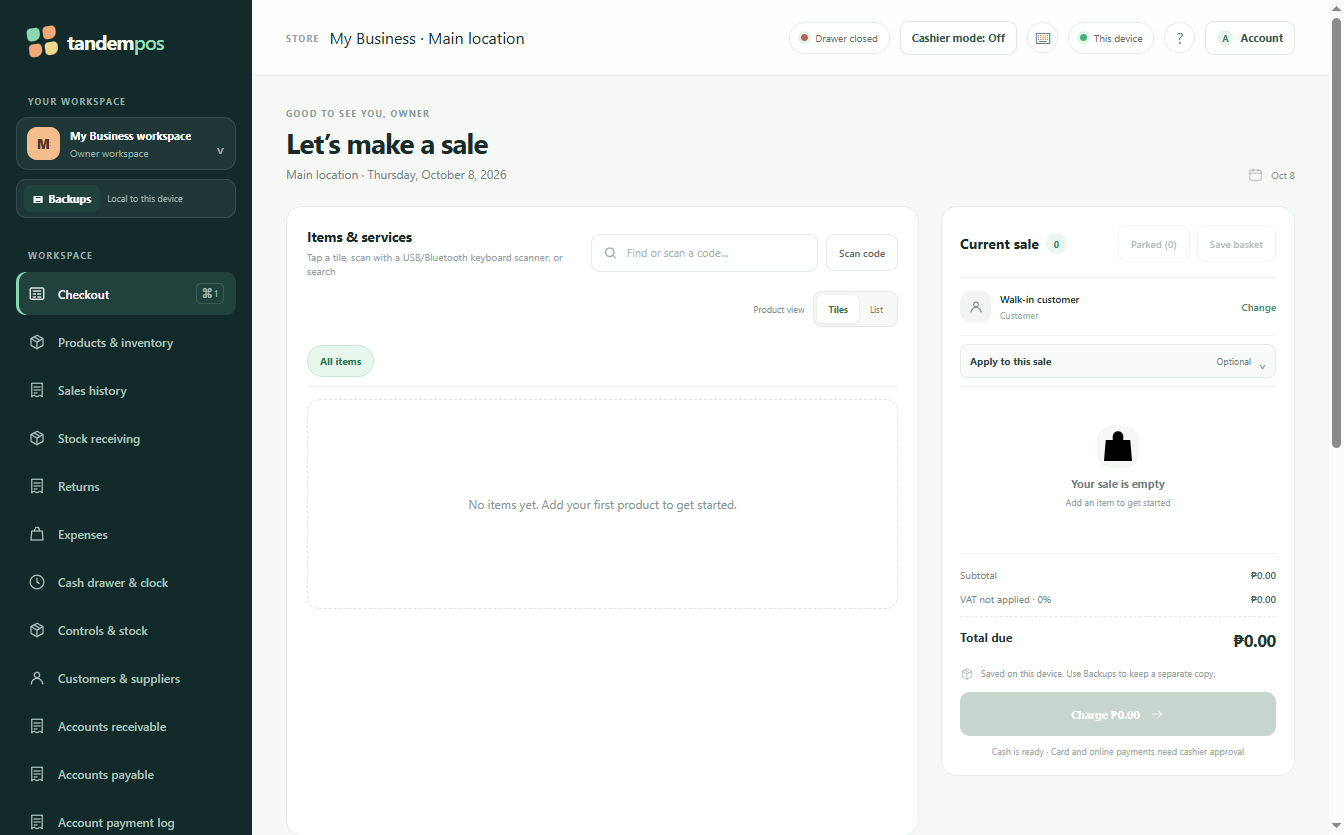
3. Basic Sales / Checkout Workflow
A POS transaction normally follows a simple sequence: select the items, confirm quantities and prices, review the total, receive payment, and finish the transaction.
Start a new sale
Open the selling/checkout area of VendoPulse and begin a new transaction.
Select a product
Choose the required product from the available catalog. If the build provides product search, categories, or a barcode workflow, use the option available on your screen.
Check quantity
Verify that the quantity is correct before proceeding. Adjust the quantity if the customer is purchasing more than one unit.
Review the order
Check the selected items, unit prices, quantities, discounts if applicable, and final amount.
Take payment
Select the payment method supported by your installed build and enter or confirm the amount received.
Complete the sale
Confirm the transaction only after checking the final total. If receipt printing or another output option is available, use it according to your store procedure.
4. Product Catalog and Product Information
Product data is the foundation of a POS system. Keep product names, prices, categories, and other available fields accurate so sales records remain reliable.
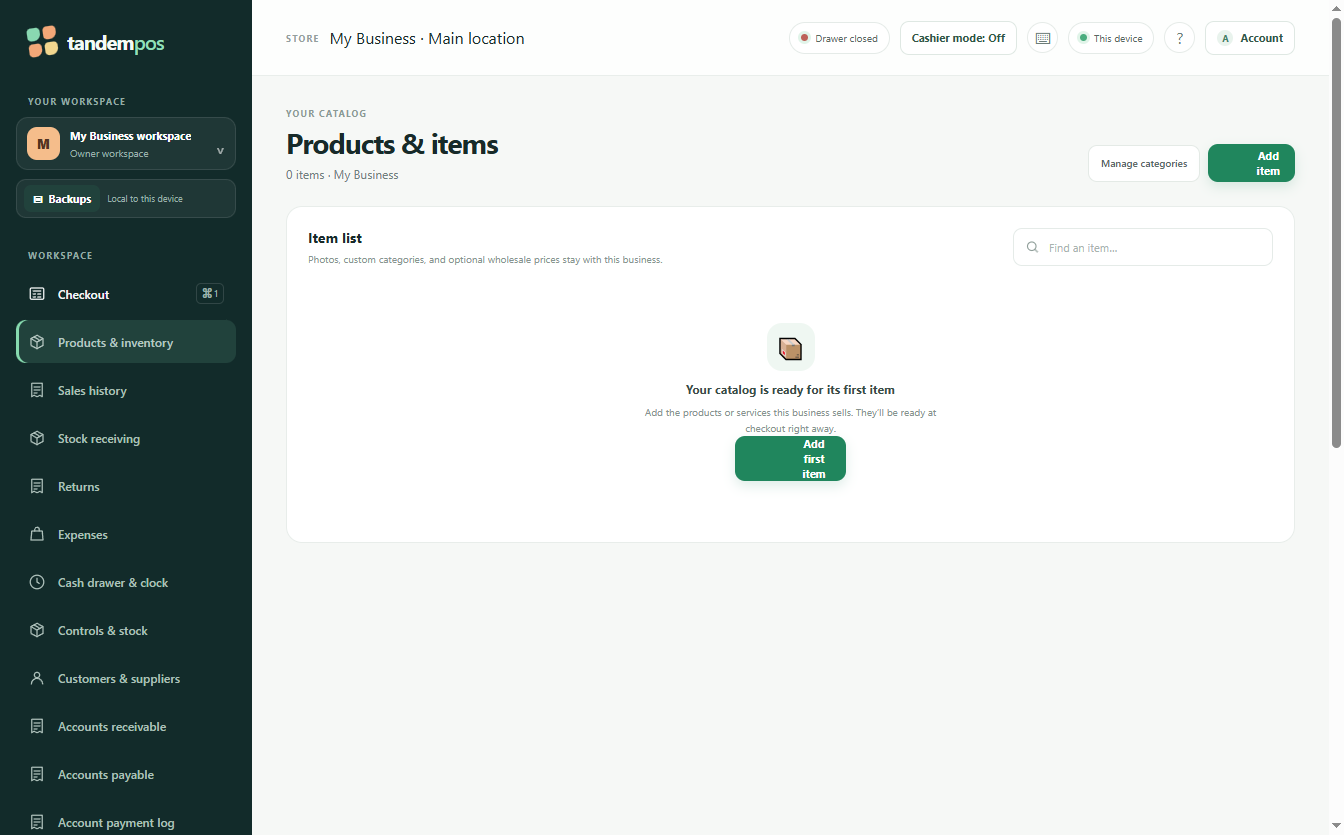
Open product management
Go to the product/catalog area available in your VendoPulse build.
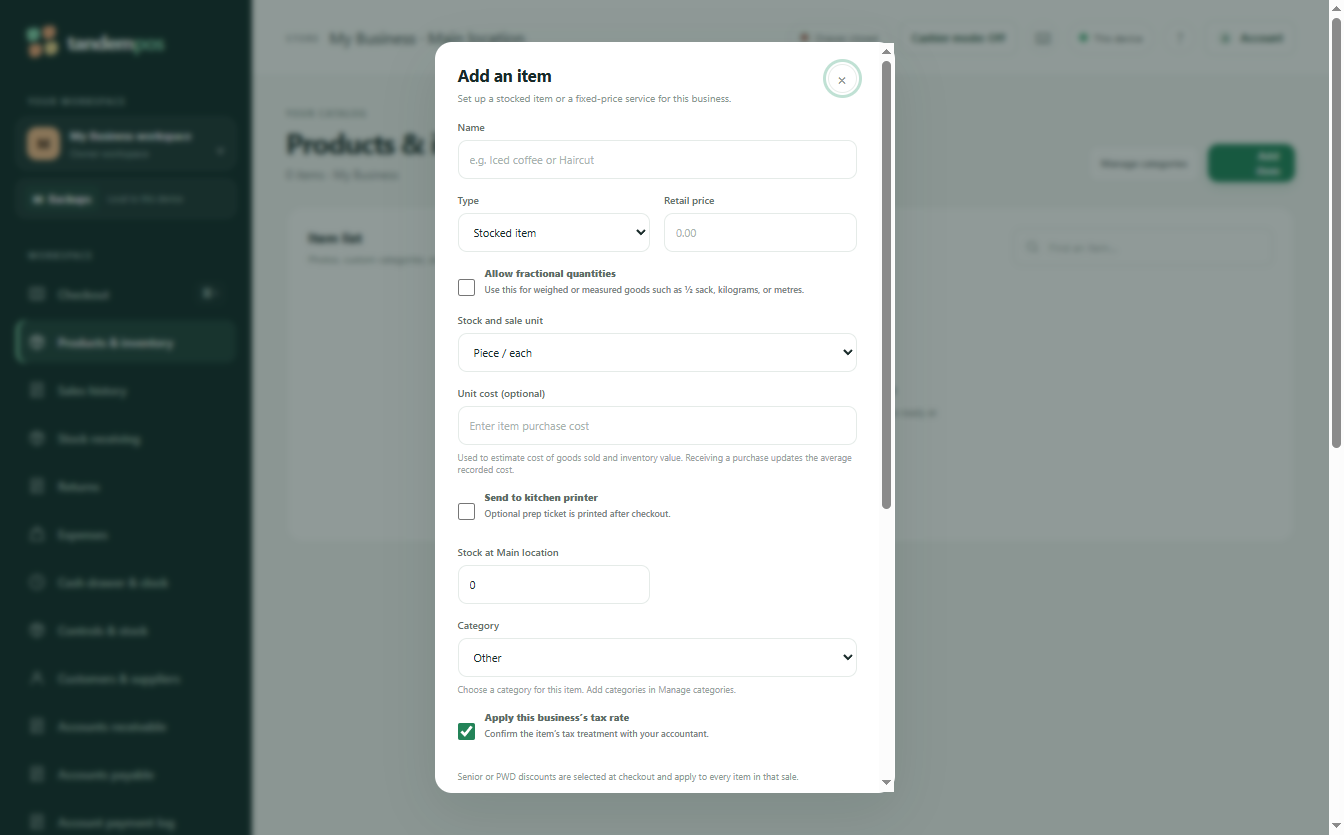
Add or edit a product
Enter the product information requested by the application. Use clear names and consistent pricing.
Assign a category
If categories are available, group products logically so staff can find them quickly during checkout.
Save and test
Save the record, then verify that the product appears correctly in the selling screen.
5. Inventory and Stock Control
If inventory/stock controls are enabled in your build, use them to keep product availability aligned with actual stock.
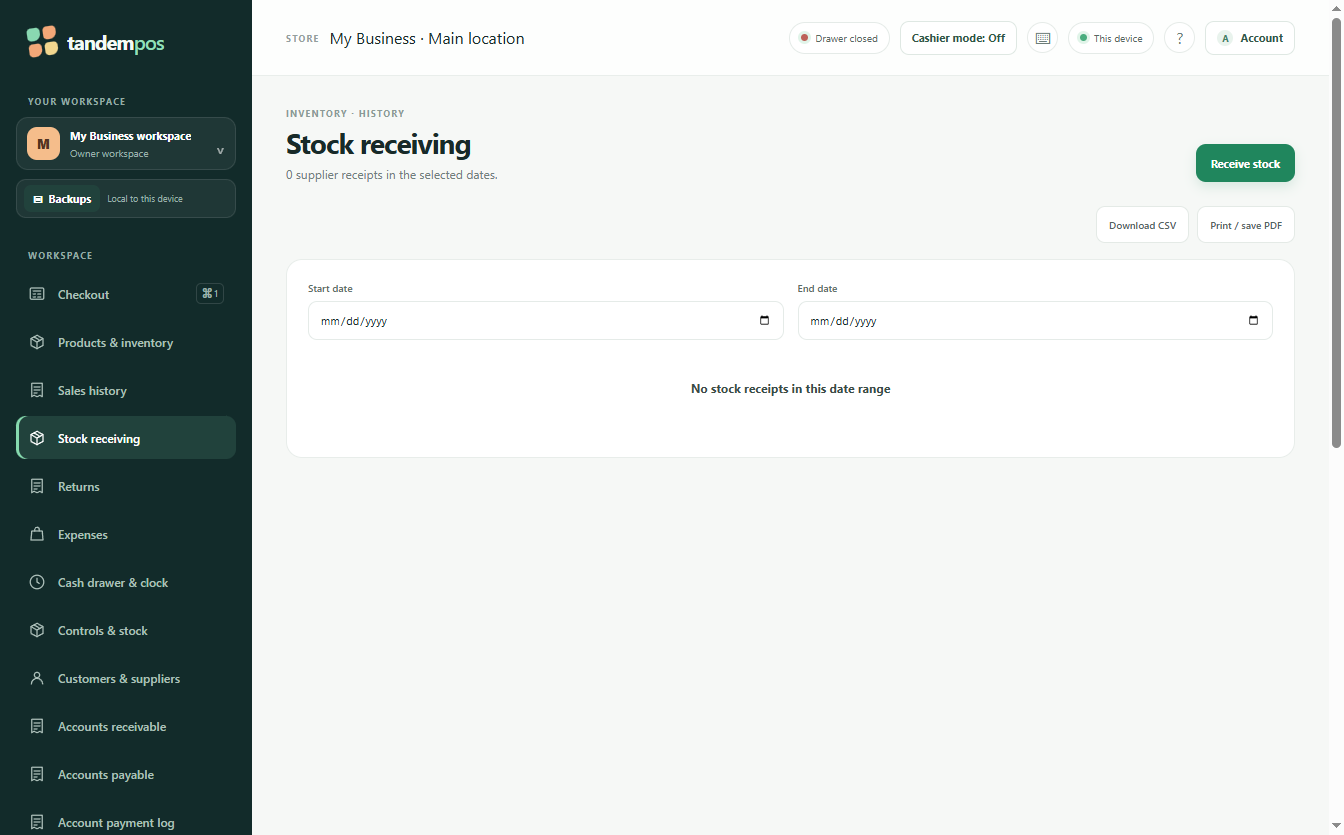
Record stock accurately
With syncing OFF, use the POS local stock tools. With online syncing ON and a compatible register, compile Stock receiving on the website and approve it on the assigned POS; linked sales then update the shared ledger.
Monitor low stock
Review available quantities regularly so fast-moving items can be replenished before they run out.
Investigate differences
If the recorded quantity does not match physical stock, check recent sales, returns, manual adjustments, and data-entry errors.
6. Sales Records and Reports
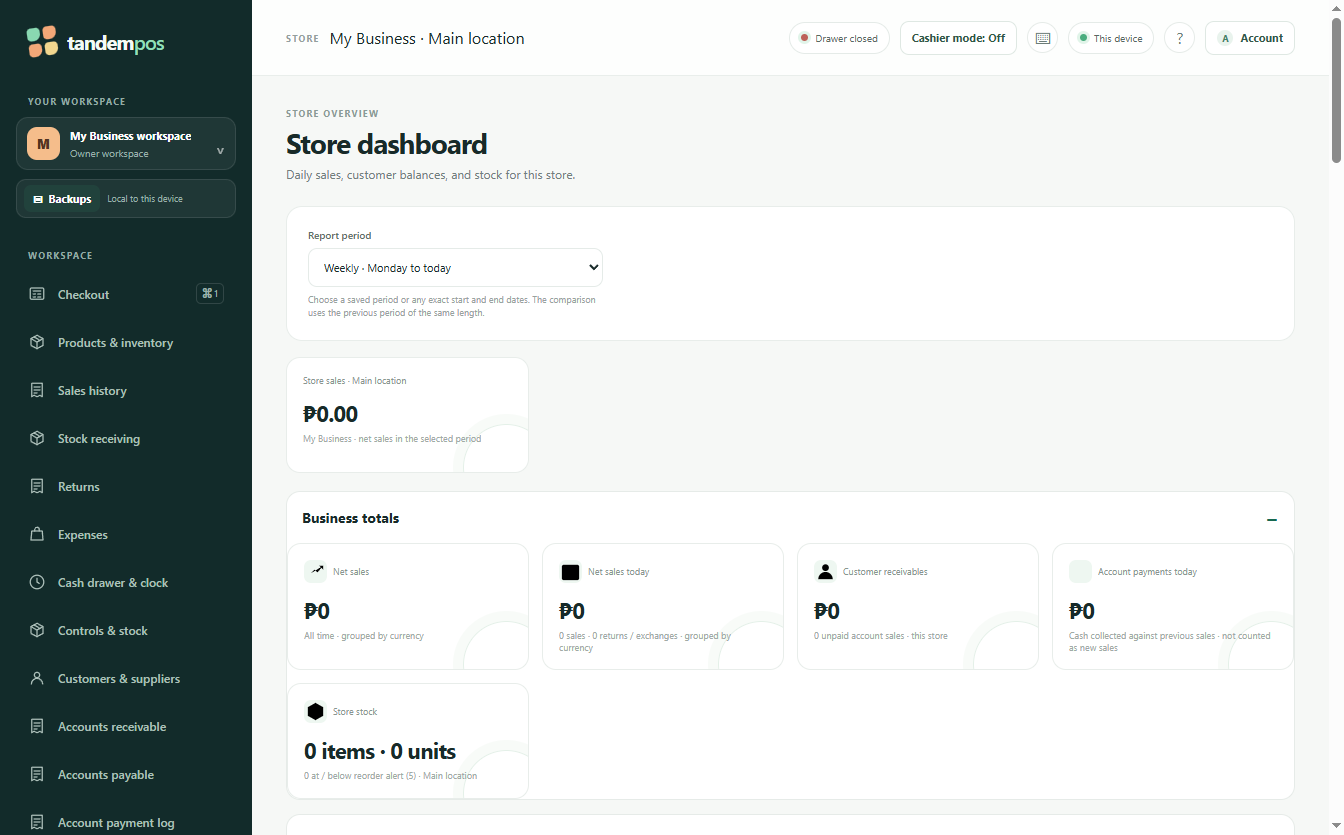
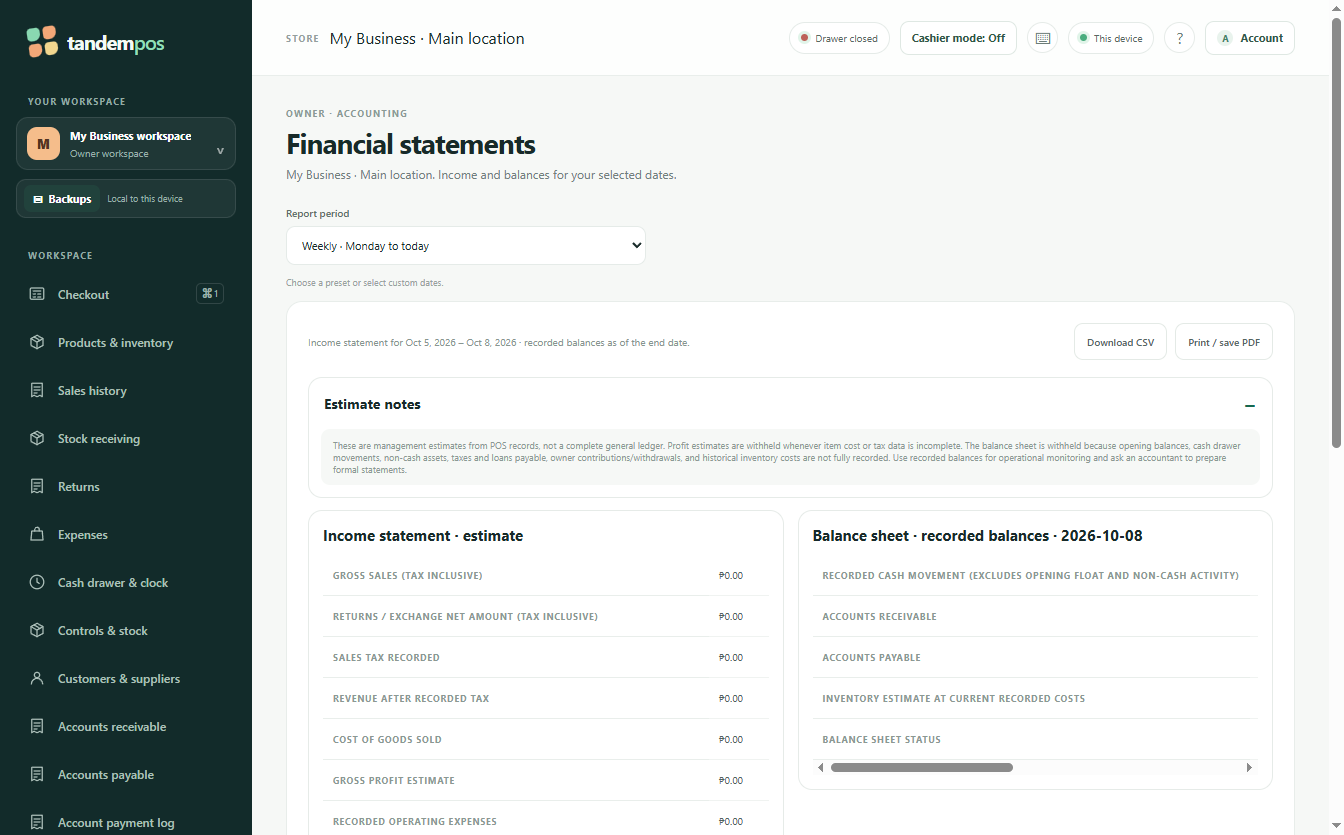
Use the reporting/history area available in your build to review transactions and monitor business activity.
Choose the report or history view
Open the available sales history or reporting feature.
Set the date or filter
If filters are provided, choose the period or criteria you need before reviewing results.
Check totals
Compare the displayed totals with your expected transaction records and investigate unusual differences.
Export or record results
If your build provides export/print functions, follow your organization's record-keeping procedure.
7. Daily Operation and Maintenance
Start of day
Open VendoPulse, verify the workstation date/time, check the product catalog, and make sure required peripherals are ready.
During sales
Confirm every item and quantity before payment. Avoid leaving an unfinished transaction unattended.
End of day
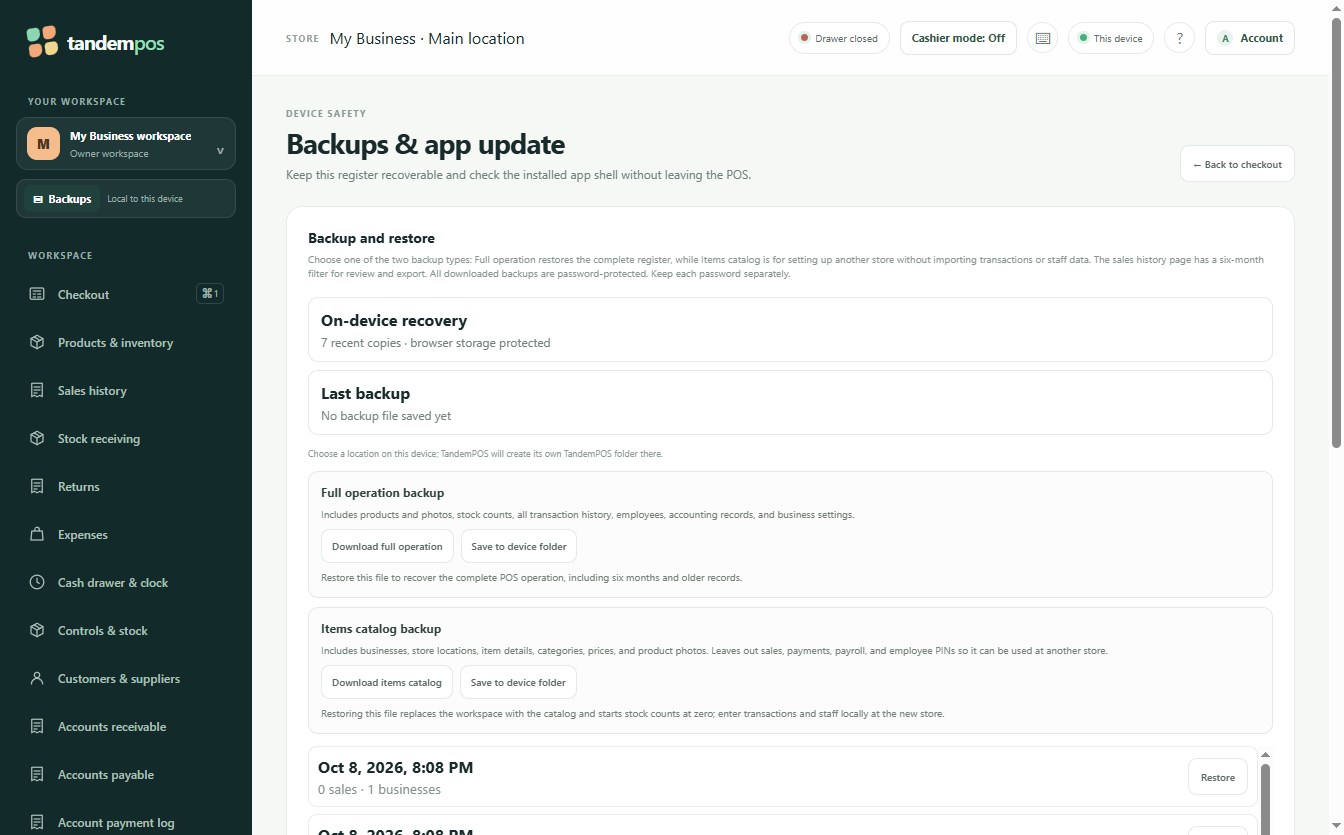
Review sales records, reconcile cash/payment records according to store policy, and complete any required backup or closing procedure.
8. Basic Troubleshooting
| Problem | First action | Next step |
|---|---|---|
| App does not open | Restart the application and confirm Windows is running normally. | Restart the computer and verify the VendoPulse installation. |
| Product is missing | Check the product/catalog area. | Confirm that the product was saved and is available to the sales screen. |
| Wrong quantity | Correct the quantity before completing the sale. | Check the product record and transaction history if the problem repeats. |
| Unexpected total | Review items, quantities, prices, and any discounts. | Do not complete the transaction until the total is verified. |
| Printer/peripheral issue | Check power, cable/network connection, and Windows device status. | Test the device outside the POS if necessary, then retry the transaction. |
9. VendoPulse Visual Assets
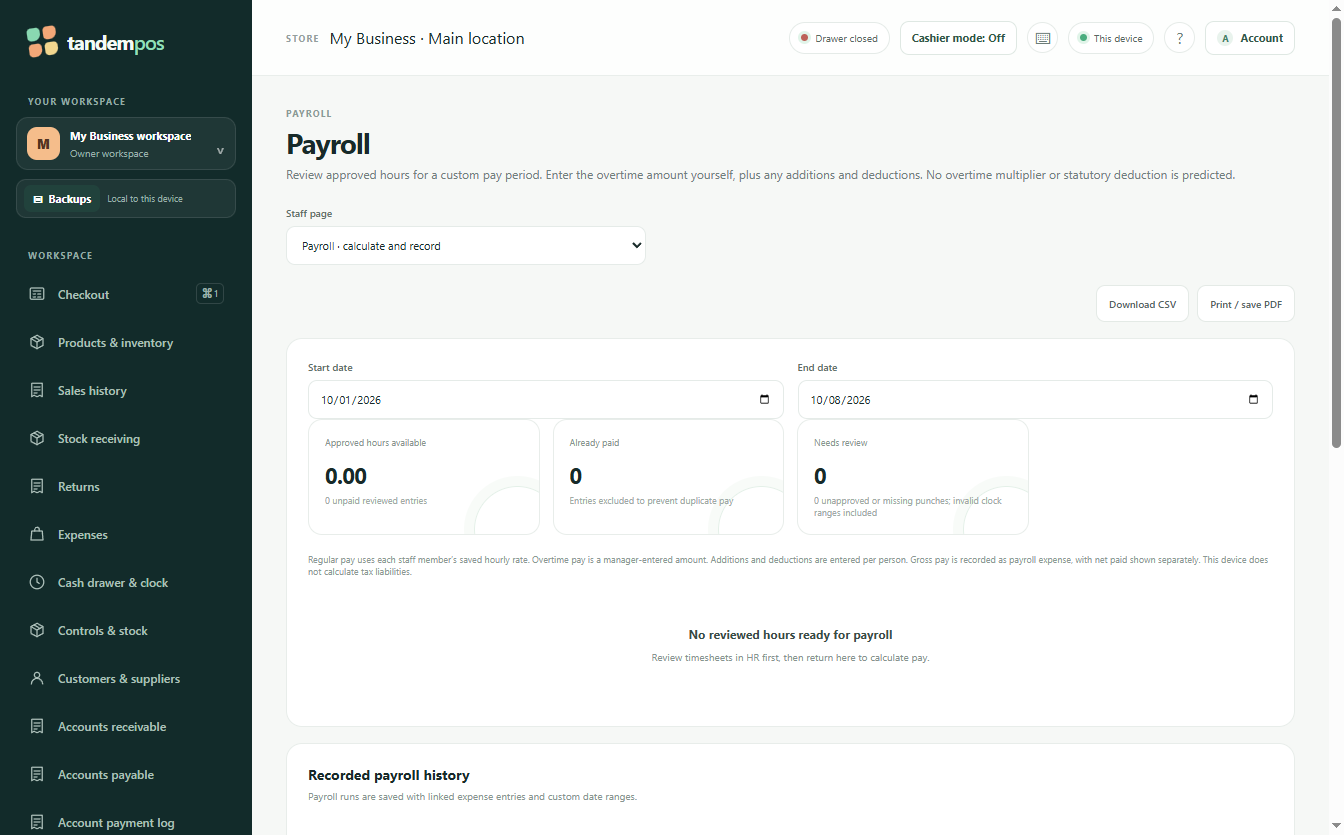
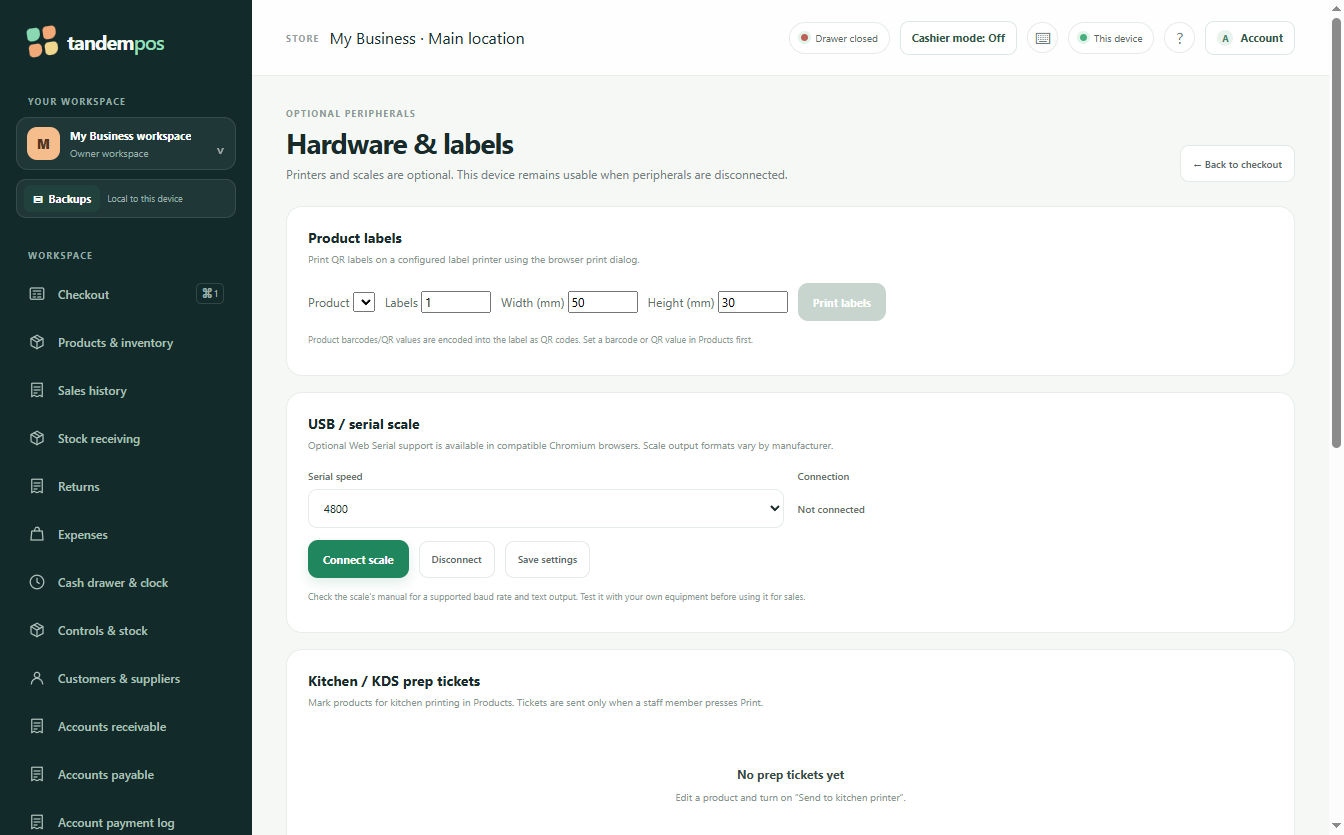
The installer contains actual VendoPulse application artwork and sample catalog imagery. These are included here as genuine assets extracted from the current VendoPulse local build—live screens captured from the running VendoPulse app.
10. Quick Reference
Before selling
Open app → verify catalog → check workstation/peripherals → prepare transaction.
For every sale
Select item → verify quantity → review total → receive payment → complete transaction.
After selling
Review records → reconcile according to policy → perform required backup/closing tasks.
Document basis: earlier VendoPulse register illustrations, retained for daily task reference. Check the current download versions and integration guide before setup.